Programmatically creating an Excel pivot table mainly involves two methods: one is to use the PivotTableWizard method of the worksheet object to create it via a wizard; the other is to use the CreatePivotTable method of the cache object.
Creating a Pivot Table Using the PivotTableWizard Method
As shown in Figure 7-1, the worksheet contains data about orders for various vegetables and fruits. Below, we use the PivotTableWizard method of the worksheet object to create a pivot table. In the data, “Category” is used as the page field, “Product” as the column field, “Origin” as the row field, and “Amount” as the value field.
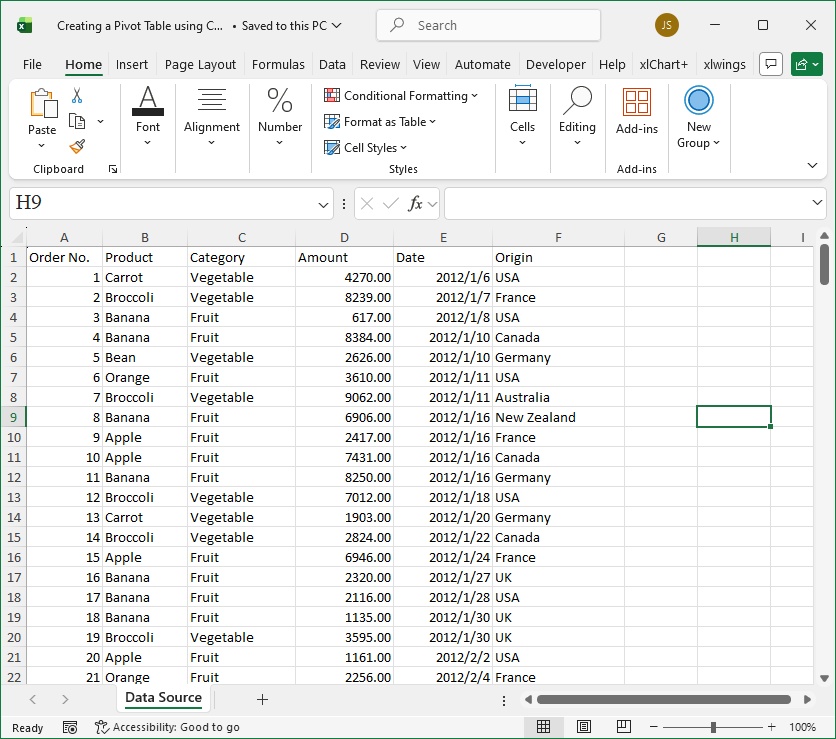
Figure 7-1
[Excel VBA] The sample file path is Samples\ch19\Excel VBA\Creating a Pivot Table using the PivotTableWizard Method.xlsm. The PVT procedure uses the PivotTableWizard method of the worksheet object to create the pivot table.
First, obtain the data source and create a new worksheet to hold the pivot table.
Dim shtData As Worksheet
Dim shtPVT As Worksheet
Dim rngData As Range
Dim PVT As PivotTable
' Worksheet containing the data
Set shtData = Worksheets("Data Source")
' Cell range of the data
Set rngData = shtData.Range("A1").CurrentRegion
' Create a new worksheet for the pivot table
Set shtPVT = Worksheets.Add()
shtPVT.Name = "Pivot"  ' Name of the worksheet
Specify the data source type and cell range, then create the pivot table.
Set PVT = shtPVT.PivotTableWizard(SourceType:=xlDatabase, _
    SourceData:=rngData)
PVT.Name = "Pivot"  ' Name of the pivot table
Then set the various fields of the pivot table: use “Category” as the page field, “Product” as the column field, “Origin” as the row field, and “Amount” as the value field.
With PVT
    .PivotFields(“Category”).Orientation = xlPageField   ' Page field
    .PivotFields(“Category”).Position = 1               ' First field in page fields
    .PivotFields(“Product”).Orientation = xlColumnField ' Column field
    .PivotFields(“Product”).Position = 1               ' First field in column fields
    .PivotFields(“Origin”).Orientation = xlRowField   ' Row field
    .PivotFields(“Origin”).Position = 1               ' First field in row fields
    .PivotFields(“Amount”).Orientation = xlDataField   ' Value field
End With
The complete code of the PVT procedure is in the sample file. Running the procedure creates a new worksheet named “Pivot” and generates the pivot table as shown in Figure 7-2.
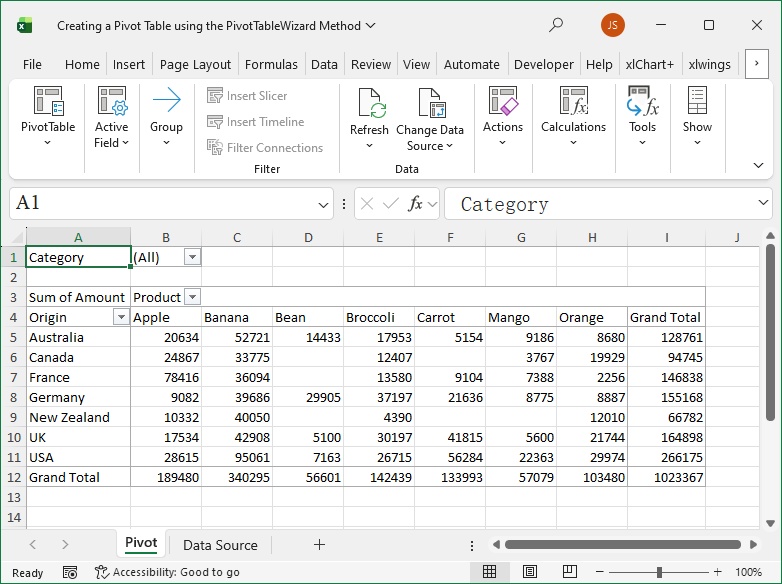
Figure 7-2
[Python] The Python script file path is Samples\ch19\Python\Create Pivot Table 1.py.
First, import the xlwings and os packages, create an Excel application, open the data file at the specified path, and get the data source worksheet.
import xlwings as xw   # Import xlwings package
import os              # Import os package
root = os.getcwd()    # Get current path
# Create Excel application (visible, no workbook added initially)
app = xw.App(visible=True, add_book=False)
# Open data file (writable)
bk = app.books.open(fullname=root + r'\Create Pivot Table.xlsx', read_only=False)
# Get data source worksheet
sht_data = bk.sheets.active
Then get the cell range of the data and create a new worksheet for the pivot table.
rng_data = sht_data.api.Range('A1').CurrentRegion
# Create a new worksheet for the pivot table
sht_pvt = bk.sheets.add()
sht_pvt.name = 'Pivot'
Finally, use the xlwings API to create the pivot table.
pvt = sht_pvt.api.PivotTableWizard(
    SourceType=xw.constants.PivotTableSourceType.xlDatabase,
    SourceData=rng_data
)
pvt.Name = 'Pivot'
Set the fields and their positions in the field category for the pivot table: use “Category” as the page field, “Product” as the column field, “Origin” as the row field, and “Amount” as the value field.
pvt.PivotFields(‘Category’).Orientation = \
    xw.constants.PivotFieldOrientation.xlPageField   # Page field
pvt.PivotFields(‘Category’).Position = 1                 # First field in page fields
pvt.PivotFields(‘Product’).Orientation = \
    xw.constants.PivotFieldOrientation.xlColumnField # Column field
pvt.PivotFields(‘Product’).Position = 1                 # First field in column fields
pvt.PivotFields(‘Origin’).Orientation = \
    xw.constants.PivotFieldOrientation.xlRowField   # Row field
pvt.PivotFields(‘Origin’).Position = 1                 # First field in row fields
pvt.PivotFields(‘Amount’).Orientation = \
    xw.constants.PivotFieldOrientation.xlDataField   # Value field
Running the script generates the pivot table shown in Figure 7-2.
Creating a Pivot Table Using Cache
Creating a pivot table using cache allows Excel to establish a cache for the pivot table, enabling fast reading of data from the data source. First, use the Create method of the PivotCaches object to create a PivotCache object (i.e., cache object), then use the CreatePivotTable method of the cache object to create the pivot table.
[Excel VBA] The sample file path is Samples\ch19\Excel VBA\Creating a Pivot Table using Cache.xlsm. The PVT procedure creates the pivot table.
First, obtain the data source, create a new worksheet for the pivot table, and specify the location to place the pivot table in the worksheet.
Dim shtData As Worksheet
Dim shtPVT As Worksheet
Dim rngData As Range
Dim rngPVT As Range
Dim pvc As PivotCache
Dim PVT As PivotTable
' Worksheet containing the data
Set shtData = Worksheets("Data Source")
' Cell range of the data
Set rngData = shtData.Range("A1").CurrentRegion
' Create a new worksheet for the pivot table
Set shtPVT = Worksheets.Add()
shtPVT.Name = "Pivot"
' Location to place the pivot table
Set rngPVT = shtPVT.Range("A1")
Create the cache associated with the pivot table and use the cache object to create the pivot table. The Create method of the PivotCaches object specifies the data source type and range; the CreatePivotTable method of the cache object creates the pivot table, with parameters specifying the destination location and name. The destination location refers to the top-left corner of the pivot table range.
' Create cache associated with the pivot table
Set pvc = ActiveWorkbook.PivotCaches.Create( _
    SourceType:=xlDatabase, SourceData:=rngData)
' Create pivot table
Set PVT = pvc.CreatePivotTable(TableDestination:=rngPVT, _
    TableName:="Pivot")
Set the fields for the pivot table: use “Category” as the page field, “Product” as the column field, “Origin” as the row field, and “Amount” as the value field.
With PVT
    .PivotFields(“Category”).Orientation = xlPageField   ' Page field
    .PivotFields(“Category”).Position = 1
    .PivotFields(“Product”).Orientation = xlColumnField ' Column field
    .PivotFields(“Product”).Position = 1
    .PivotFields(“Origin”).Orientation = xlRowField   ' Row field
    .PivotFields(“Origin”).Position = 1
    .PivotFields(“Amount”).Orientation = xlDataField   ' Value field
End With
Running the procedure generates the pivot table shown in Figure 7-3.
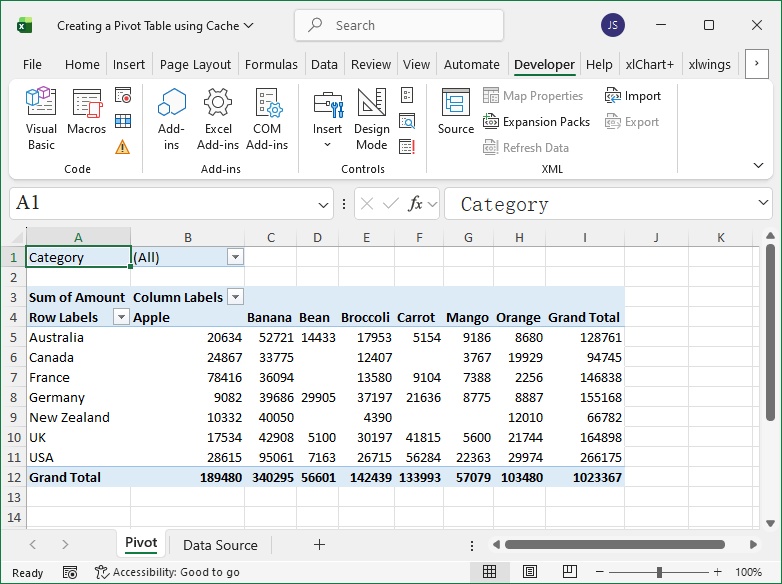
Figure 7-3
[Python] The Python script file path is Samples\ch19\Python\Create Pivot Table 2.py.
(Omitted code for brevity; refer to the Python file.)
Specify the location to place the pivot table:
rng_pvt = sht_pvt.api.Range('A1')
Create the cache associated with the pivot table:
pvc = bk.api.PivotCaches().Create(
    SourceType=xw.constants.PivotTableSourceType.xlDatabase,
    SourceData=rng_data
)
Create the pivot table:
pvt = pvc.CreatePivotTable(
    TableDestination=rng_pvt,
    TableName='Pivot'
)
Set fields(omitted).
Running the script generates the pivot table shown in Figure 7-3.
Referencing Pivot Tables
After creating a pivot table, its object is stored in the PivotTables object of the worksheet. To modify a specific pivot table in the object, you must first find and extract it. Therefore, referencing a pivot table means finding the required pivot table from the object.
There are two methods to reference a pivot table: by index number or by name.
[Excel VBA] The sample file path is Samples\ch19\Excel VBA\ Referencing a Pivot Table.xlsm. The file contains two procedures: CreatePVT (creates the pivot table) and IndexPVT (references the pivot table). For brevity, the code of CreatePVT is omitted. Before referencing the pivot table, run CreatePVT first.
The code of the IndexPVT procedure is as follows: first, use the Count property of the PivotTables object to get the number of pivot tables in the worksheet, then reference the first pivot table in the object by index, and reference the pivot table named “Pivot” by name.
Sub IndexPVT()
    ' Reference pivot table
    Dim shtPVT As Worksheet
    Set shtPVT = Worksheets("Pivot")
    Debug.Print shtPVT.PivotTables.Count           ' Number of pivot tables in the worksheet
    Debug.Print shtPVT.PivotTables(1).Name         ' Reference by index
    Debug.Print shtPVT.PivotTables("Pivot").Name  ' Reference by name
End Sub
Running the procedure outputs the result in the Immediate Window.
[Python] The Python script file path is Samples\ch19\Python\Referencing a Pivot Table.py.
(Omitted code for brevity; refer to the Python file.)
Reference the pivot table:
print(sht_pvt.api.PivotTables().Count)           # Number of pivot tables
print(sht_pvt.api.PivotTables(1).Name)           # Reference by index
print(sht_pvt.api.PivotTables('Pivot').Name)    # Reference by name
Running the script outputs the pivot table name in the Python Shell.
Refreshing Pivot Tables
To refresh a pivot table, use the RefreshTable method of the PivotTable object.
[Excel VBA] The sample file path is Samples\ch19\Excel VBA\ Refreshing a Pivot Table.xlsm. The file contains two procedures: CreatePVT (creates the pivot table) and UpdatePVT (refreshes the pivot table). For brevity, the code of CreatePVT is omitted. Before refreshing, run CreatePVT first.
The code of the UpdatePVT procedure is as follows:
Sub UpdatePVT()
    ' Omitted: get pivot table pvt
    ' ...
    pvt.RefreshTable
End Sub
Running the procedure refreshes the pivot table.
[Python] The Python script file path is Samples\ch19\Python\Refreshing a Pivot Table.py.
(Omitted code for brevity; refer to the Python file.)
Refresh the pivot table:
pvt.RefreshTable()Running the script refreshes the pivot table.